
Blog
Ideas, guides & field notes
Practical know-how for turning your website into a business asset — from design and build fundamentals to conversion and AI search visibility — written by the Supasaito team from real client projects.
 AI & Search Visibility
 7 Best LLMO / AI Search Optimization Agencies in Japan (2026)
How to choose an LLMO / AIO agency — judged on measurement, implementation, pricing transparency and track record. Six leading Japanese firms compared on public data, from a team that implements AI visibility, not just measures it. By Supasaito (free AI Visibility Audit).
 AI & Search Visibility
 How Much Does LLMO / AI Search Optimization Cost in Japan? (2026)
What LLMO / AIO optimization actually costs in Japan in 2026, based on public pricing. A one-off diagnostic runs ¥100K–500K; monthly consulting sits at ¥150K–800K. The price breakdown, how to choose, and what to check before you buy — from Supasaito.
 AI & Search Visibility
 How To Do LLMO in 2026: Where To Start, and 12 Steps You Can Do In-House
How to do LLMO / AI search optimization: a 5-step way to start, plus the 12 steps you can run in-house and the areas worth outsourcing — across four layers: structure, content, off-site signals, measurement. From Supasaito, who run a free AI Visibility Audit.
 Business & Freelancing
 In-House vs Outsourcing Your Website (2026): Costs, Trade-offs & How to Choose the Right Partner
Recently, the rise of no-code tools has simplified website creation for those without engineering backgrounds. When you create a website, you probably have a certain purpose in mind. But if that purpose is just "I just want a website," then using no-code tools such as Webflow, Wix, Studio and others, you can easily and free of charge create a website. However, if the purpose of creating a website is to improve your brand, attract customers, or sell products effectively, you need to create a website to achieve that goal. This requires a variety of knowledge and skills, such as creating a design that fits the brand's image, building source code that loads quickly, and creating a structure and content that is optimized for search. It is a difficult decision to decide whether to do this job, which requires many production man-hours, in-house or to outsource it to an outside production company or freelancer. To help you make this decision, we will explain in detail the advantages and disadvantages of each.
 AI & Search Visibility
 What Is GEO? Generative Engine Optimization in 2026 — How To Do It, and What It Costs
GEO (Generative Engine Optimization) explained: how it differs from LLMO and AEO, a practical 6-step playbook, and 2026 cost benchmarks. From Supasaito, the team behind the free AI Visibility Audit — how to get cited and recommended by generative AI search.
 AI & Search Visibility
 Google Now Scores Whether AI Agents Can Use Your Website — Here's What Agentic Browsing Checks
PageSpeed Insights now scores whether AI agents can use your site. What the four Agentic Browsing audits (llms.txt, accessibility tree, WebMCP, CLS) check, plus a 60-second self-check. From Supasaito, home of the free AI Visibility Audit.
 Webflow & Development
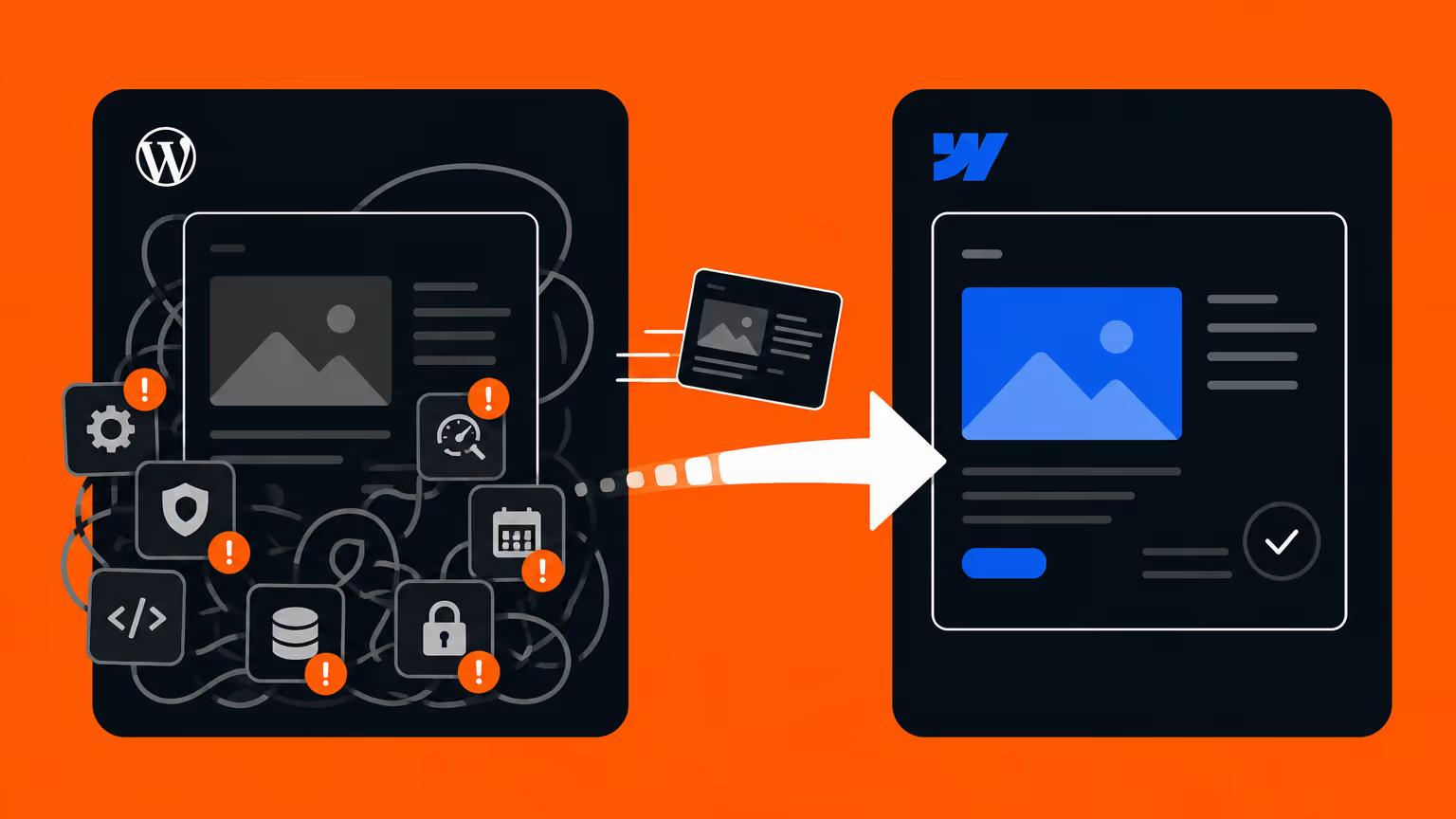
 Should You Migrate from WordPress to Webflow? (2026 Guide) — When to Switch, Costs, and How to Do It Right
Should your company migrate from WordPress to Webflow? An honest decision guide covering maintenance costs, security, in-house management, and SEO — when migration makes sense, when to stay on WordPress, and how to migrate without losing rankings. By Japan's first official Webflow Enterprise Partner.
 AI & Search Visibility
 Why ChatGPT Recommends Your Competitors — and How to Fix It
You asked ChatGPT about your category and got your competitors. Here are the 5 reasons AI leaves your brand out — and how to fix each one, with a 15-minute self-check. From Supasaito, who run a free AI Visibility Audit.
AI & Search Visibility 7 Best LLMO / AI Search Optimization Agencies in Japan (2026)
How to choose an LLMO / AIO agency — judged on measurement, implementation, pricing transparency and track record. Six leading Japanese firms compared on public data, from a team that implements AI visibility, not just measures it. By Supasaito (free AI Visibility Audit).
AI & Search Visibility How Much Does LLMO / AI Search Optimization Cost in Japan? (2026)
What LLMO / AIO optimization actually costs in Japan in 2026, based on public pricing. A one-off diagnostic runs ¥100K–500K; monthly consulting sits at ¥150K–800K. The price breakdown, how to choose, and what to check before you buy — from Supasaito.
AI & Search Visibility How To Do LLMO in 2026: Where To Start, and 12 Steps You Can Do In-House
How to do LLMO / AI search optimization: a 5-step way to start, plus the 12 steps you can run in-house and the areas worth outsourcing — across four layers: structure, content, off-site signals, measurement. From Supasaito, who run a free AI Visibility Audit.
 AI & Search Visibility
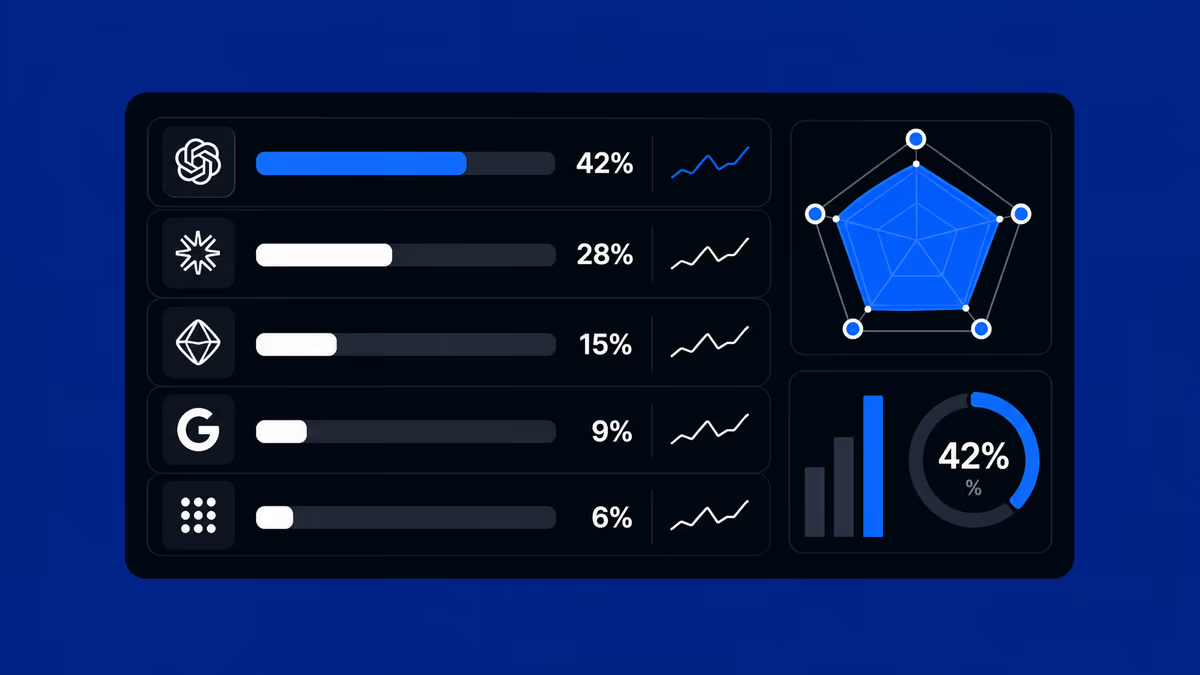
 How to Measure AI Visibility: The 5-Axis Framework for LLMO Results
How to measure AI visibility (share of voice) with a 5-axis framework for LLMO results. Why SEO KPIs don't transfer, how to build a prompt panel, and what a monthly report should contain. From Supasaito, who run a free AI Visibility Audit.
 Webflow & Development
 Webflow vs STUDIO (2026): Which Should You Build Your Company Site On?
Webflow or STUDIO for your company website? We compare code ownership, scalability, multilingual reach, SEO, pricing and Japanese support from a business perspective — written by Supasaito, Japan's first official Webflow Enterprise Partner — with a scenario-based guide to choosing.
 Conversion (CRO)
 How to Improve B2B Website & Landing Page Conversion Rates: Choosing the Right Partner
How to improve B2B website and landing page conversion rates: a practical guide to CRO, choosing a data-driven development partner, and a vendor checklist.
 Tools & Workflow
 Comparison of Web Design Tools
This article compares four popular no-code website creation tools: WordPress, Wix, STUDIO, and Webflow. For each platform, it provides an overview of its key features, pros and cons, and ideal use cases.
 Webflow & Development
 Comparison: WIX and STUDIO
Not sure whether to go with Wix or STUDIO? Wix lets you build intuitively, while STUDIO shines with design flexibility. We break down their features in a friendly way—and also introduce Webflow, a pro-level tool worth knowing.
 Webflow & Development
 Web Development at Scale with Webflow: Component and Variable-Based Framework for Fast Teamwork and Error Prevention
This Webflow framework by Supasaito simplifies website building and management, especially for large teams. It tackles common challenges like design bottlenecks, accidental style changes, and inconsistencies using components with properties, structured variables, and clear CSS class naming. The system boosts speed, flexibility, localization, and design control, ensuring consistent, scalable, and error-free Webflow development.
 Webflow & Development
 Publish Your Website Without a Server! Getting Started with Web Design Using Webflow
Have you ever thought, “I want to build my own website, but do I need to rent a server to do that?” If so, you're not alone. In the past, building a website required you to sign up for a server and configure everything yourself. But now, with no-code tools like Webflow, it's possible to publish your website without needing a separate server contract! In this article, we’ll break down what a server is, why you don’t need one when using Webflow, and how beginners can easily get started with web design—no tech knowledge required.
 Webflow & Development
 WordPress vs. No-Code! Which should you choose?
 Design (UI/UX)
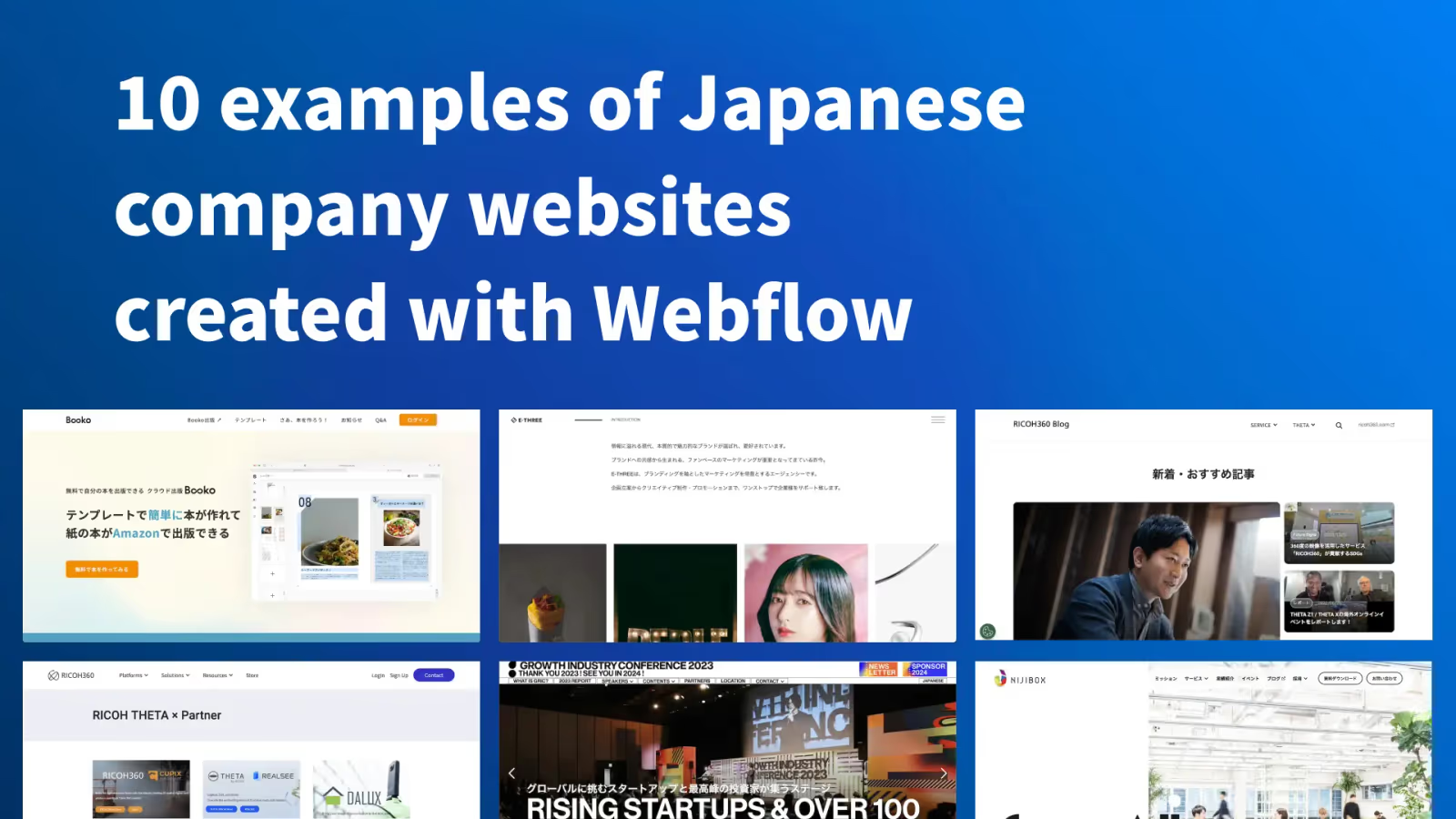
 9 examples of Japanese company websites created with Webflow
Hello everyone! We are Supasaito, a no-code tool expert! Webflow is a no-code platform that allows designers and web professionals alone to create websites with zero knowledge of coding. In Japan, Webflow has been highly evaluated for its versatility and freedom of design, and many companies have adopted Webflow.In this article, we will introduce several Japanese websites created with Webflow, and see what kind of sites can be created with Webflow!
 Webflow & Development
 What Is Webflow? Why It’s the Most Popular No-Code Tool
This article introduces Webflow from an expert’s perspective, detailing its unique visual development features, competitive edge over other no-code platforms, and suitability for beginners, designers, and enterprises.
 Webflow & Development
 Global business and website localization
Overview of the benefits and best practices of website internationalization and localization.
 Design (UI/UX)
 Japanese Website Showcase Built with Webflow
This article showcases six real Webflow projects built by LikePay in Japan, highlighting use cases from large enterprises (Ricoh, Toppan Printing), educational and nonprofit initiatives (Booko, Terackathon), and commercial websites (E-Housing, Unique On).
 Business & Freelancing
 How to Choose the Right Webflow Developer: A Guide to Business Success
This article offers a practical guide to selecting a reliable Webflow developer or agency.
 Webflow & Development
 Comparing Webflow and Framer – Which No-Code Tool Is Right for You?
This in-depth article compares Webflow and Framer, two leading no-code tools used globally (especially outside Japan) to manage websites without traditional coding.
Contact
Take the next step — at your own pace.
Not sure about scope or budget yet? No problem. Whether you're just gathering information or ready to discuss a project, there are three ways to start — all free of charge.